
Why Does One Image File Determine the Fate of a Blog?
- Understand the key differences between JPEG and PNG and the principles of their compression methods.
- Choose the most suitable image format for your content (photos, logos, screenshots).
- Gain practical tips for improving website loading speed and design quality.
Let’s start with the story of an enthusiastic blogger named ‘Hana.’ She creates excellent content but struggles with slow loading speeds and blurry logos. Did you know that the root cause of these issues is her lack of knowledge about the JPEG PNG difference and her incorrect choice of image format? Choosing the right image format goes beyond a technical issue; it directly impacts user experience (UX) and search engine optimization (SEO). Through this article, let’s uncover the secrets of these two image formats and learn how to make the best choice to elevate your content.
Meeting JPEG: The Magician of Capturing a Colorful World
JPEG (Joint Photographic Experts Group) is like a realist painter capturing the complex and colorful beauty of the real world. Its goal is to efficiently capture all the colors of the world, from the subtle color changes of a sunset to the smooth skin tones of a person.
The Magic of Smart Compression (Lossy Compression)
The biggest feature of JPEG is ‘Lossy Compression.’ The term ’lossy’ might be misleading, but it refers to a technique that cleverly removes data that the human eye cannot easily perceive, drastically reducing file size.
- Focus on Brightness Information: Our eyes are much more sensitive to changes in brightness than to subtle color variations. JPEG uses this principle to reduce relatively less important color information (chroma subsampling) while preserving brightness information that determines the image’s contours.
- Refining Details: The image is divided into 8x8 pixel blocks and transformed into the frequency domain using ‘Discrete Cosine Transform (DCT).’ It then removes or simplifies the fine high-frequency components (complex patterns) that our eyes do not easily perceive, further compressing the data.
Thanks to this process, JPEG excels in images with complex and continuous tones, like photographs.
Moments When JPEG Shines
- Appetizing Food Photos: Efficiently expresses millions of colors and subtle shadow variations, like a glistening steak and a colorful salad.
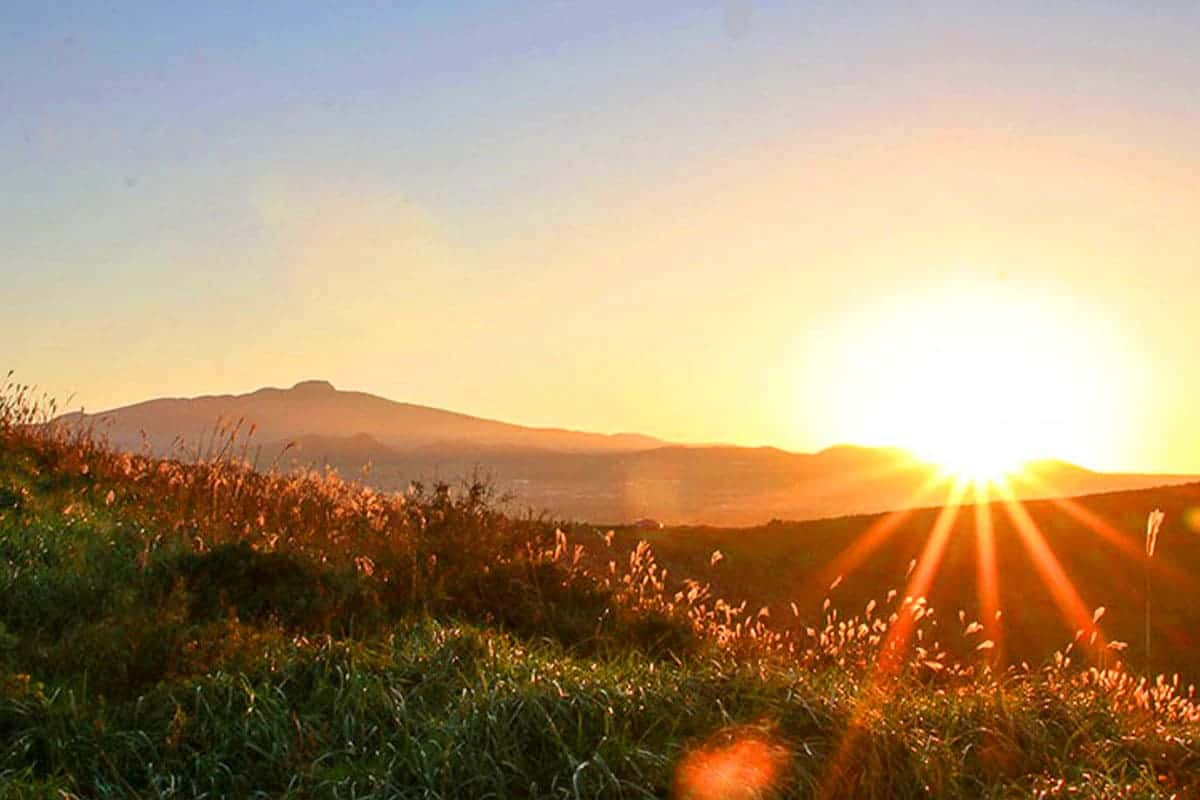
- Breathtaking Sunset Landscapes: Ideal for saving images with ‘continuous tones,’ such as the gradient of a sky smoothly transitioning from red to blue, in a small file size.
Caution: Opening a JPEG file for editing and saving it again as JPEG will result in repeated lossy compression, continuously degrading image quality. Always preserve the original photo and develop the habit of saving under a different name after editing.
Meeting PNG: The Master of Precision and Transparency in Design
PNG (Portable Network Graphics) is like a precise graphic designer who allows no room for error. Its work motto is ‘perfection and clarity,’ and it was born as a successor to overcome the limitations of the GIF format.
Principles Towards Perfection (Lossless Compression)
The core of PNG is ‘Lossless Compression.’ When a file is compressed and then decompressed, the original data is restored 100%. It works by finding repeating data patterns within the image, such as ‘blue, blue, blue,’ and recording them as a shorter code like ‘blue x4.’ This results in very high compression efficiency for images with large areas of solid color, like logos or icons.
Myth Busting: The common misconception that “PNG files are always larger than JPEG” is often incorrect. For images with few colors and clear boundaries, lossless compression can work more efficiently, resulting in PNG files that are smaller than JPEG files while maintaining superior quality in many cases.
PNG’s Superpower: The Transparent Cloak (Alpha Channel)
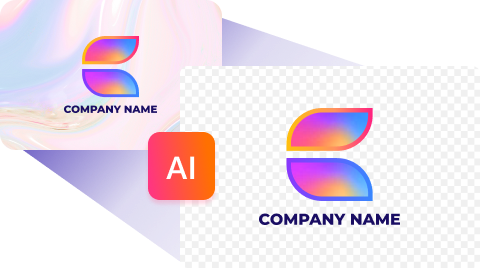
PNG’s most powerful weapon is its support for transparency through the ‘Alpha Channel.’ The ‘A’ in the RGBA color model refers to this alpha channel, which adjusts the transparency of each pixel.
- PNG-8: Supports up to 256 colors and can only express ‘fully transparent’ or ‘fully opaque.’ Suitable for simple logos.
- PNG-24: Supports about 16 million colors and 256 levels of transparency. Essential for implementing advanced designs like soft shadow effects.
Stages Where PNG Takes Center Stage
- Professional Brand Logos: Blends neatly without unwanted boxes on any background.
- Screenshots of ‘How-To Guides’: Maintains sharpness without blurring the boundaries of text and UI elements, enhancing readability.
- Product Images for Online Stores: Efficiently used across various promotional pages with a single background-free product image, ensuring consistency.
Comparison/Alternatives
JPEG vs. PNG: Key Differences at a Glance
| Feature | JPEG (Magician of Photos) | PNG (Master of Design) |
|---|---|---|
| Compression Method | Lossy Compression: Reduces file size by discarding data | Lossless Compression: Preserves original data 100% |
| Optimal Use Cases | Photos, complex images, gradients | Logos, icons, charts, text, screenshots |
| Transparency | Not supported (always opaque background) | Fully supported (transparent/semi-transparent backgrounds possible) |
| File Size | Very efficient for photos | Very efficient for simple graphics (photos become very large) |
| Key Advantages | Excellent compression rates favoring web loading speed | Maximizes perfect image quality and design flexibility |
| Cautions | Quality degradation with repeated saving | Does not support CMYK color mode for printing |
Checklist or Step-by-Step Guide
3-Second Checklist for Choosing the Right Format for My Content
-
Does the image need a transparent background?
- Yes → Choose PNG.
-
(No) Is the image a photo of a person, landscape, etc.?
- Yes → JPEG is the best choice.
-
(No) Is sharpness important for logos, icons, or screenshots with clear lines and text?
- Yes → Use PNG to maintain clarity.
Common Mistakes and Quick Solutions (Q&A)
- Q: “I keep getting a white box around my logo.” A: This is because the logo was saved as JPEG. Save it again as PNG to achieve a transparent background.
- Q: “I uploaded travel photos to my blog, and the site became too slow.” A: Convert the photos to JPEG and adjust the quality option to 80-85% when saving. You can significantly reduce file size without quality loss.
- Q: “The text in my tutorial screenshot looks blurry.” A: JPEG tends to blur edges. Screenshots containing text must be saved as PNG to ensure clarity.
Conclusion
Now you are an image format expert! To summarize the key wisdom gained from the long journey of understanding the JPEG PNG difference:
- Photos are JPEG: Images with diverse colors and gradients are best handled by JPEG, which efficiently reduces file size through lossy compression.
- Graphics are PNG: For images requiring a transparent background or where sharpness is crucial, such as logos, icons, and text, PNG’s lossless compression method should be used.
- Choice Influences Performance: Choosing the right format is a key factor in enhancing website loading speed and providing professional images, improving both user experience and SEO.
If you want to go further, consider learning about the WebP format, which combines the advantages of JPEG and PNG, or the SVG format, which remains sharp at any size. Based on the knowledge you’ve gained, may you create a visually stunning and lightning-fast space for your website.
References
- WOONY’s Insight Difference Between JPG and PNG
- nana_log JPEG vs. PNG: Choosing the Right Image Format (1) - JPEG Edition
- nana_log JPEG vs. PNG: Choosing the Right Image Format (2) - PNG Edition
- Adobe RAW vs. JPEG: How to Choose the Optimal Format
- Beusable Differences Between PNG and JPEG That UX Designers Should Know
- Wikipedia Image File Format
- MDN Alpha (Alpha Channel)